

Warning
This guide assumes you have completed setting up Tor for Android. Please visit this section before proceeding as it is required for Firefox to properly work with Tor.
Once Tor is setup on your system, you can proceed to setup Firefox:
Download Firefox Beta from the Play Store, or Fennec from F-Droid.
Next, download a Proxy Auto Config file that will use Orbot to resolve .onion URLs. We have one hosted here.
Navigate to about:config in the Firefox URL bar.

You are going to have to change a few options in here. First, type network.proxy.type into the search bar, and set the value to 2.
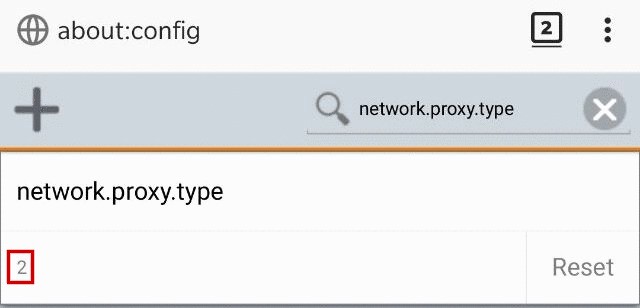
Search for network.proxy.autoconfig_url, and set the value to file:///storage/emulated/0/Download/proxy.pac.

Search for network.proxy.socks_remote_dns, and set the value to true.

Search for dom.securecontext.whitelist_onions and set the value to true.

Restart Firefox, and you’re all set! You should now be able to navigate to .onion URLs in Firefox. This means you can bookmark Cups Messenger, and use your Bitwarden Tor address in the Bitwarden Password Manager native application.